Join virtual consulting room
Whether you want to see Dr Samuel in your own home, in your office or with family or friends, virtual consulting rooms help you to see Dr Samuel wherever you are, with the benefits not having to go to doctor's rooms.

How do I prepare?
- Make an appointment to see Dr Samuel.
- Access a computer, tablet or smartphone with a camera and internet connection.
- If you have already accepted Dr Doug's Invitation previously (used Vsee before).
- Open and sign into Vsee Messenger (not Vsee Clinic!!) app
- If you can't find the downloaded app then Click on: Talk to Dr Doug on VSee now!
- If you don't have VSee installed on your device? Download VSee Now
- If you have never used Vsee before: Click on Room 1 – VSee Messenger above or below.
- You will receive an email from VSee asking you to accept Dr Samuel’s invitation.
Please check your spam folder if you do not see it. - Accept the invitation and follow the instructions in the email to download the free VSee Messenger application.
- Sign in using the same email address you registered with our office (this is important).
- Once signed in, perform a test call:
Open the VSee app → Contacts → Search “Test Call” → Click the green camera icon.
Make sure your face is well lit and the room is quiet. Headphones are optional but can improve audio and privacy. - Log in a few minutes before your appointment.
Dr Samuel will call you within the VSee platform to begin the consultation.
If he is more than 20 minutes late, or if you are having technical difficulty, please contact our rooms.

Troubleshooting & FAQ
1. Dr Samuel cannot hear you
• Make sure your microphone is not muted (check both your device and within VSee).
• Check that VSee has permission to use your microphone:
On Windows:
– Go to Settings > Privacy > Microphone
– Ensure “Microphone access” is turned ON
– Ensure VSee is allowed to access the microphone
On Mac:
– Go to System Settings > Privacy & Security > Microphone
– Ensure VSee is ticked
On iPhone/iPad:
– Go to Settings > VSee
– Ensure Microphone is enabled
On Android:
– Go to Settings > Apps > VSee > Permissions
– Ensure Microphone is allowed
• Close any other video or messaging programs (e.g. Skype, Messenger, Zoom, Teams) before opening VSee.
• Restart VSee if needed.
• Keep a phone nearby in case we need to contact you.
2. Dr Samuel cannot see you
• Ensure your video is enabled within VSee (click the camera icon to turn it on).
• Check that VSee has permission to use your camera:
On Windows:
– Go to Settings > Privacy > Camera
– Ensure Camera access is turned ON
– Ensure VSee is allowed
On Mac:
– Go to System Settings > Privacy & Security > Camera
– Ensure VSee is ticked
On iPhone/iPad:
– Go to Settings > VSee
– Enable Camera
On Android:
– Go to Settings > Apps > VSee > Permissions
– Ensure Camera is allowed
• Check that your webcam is connected and functioning (if external).
• Make sure no other app (Zoom, Teams, Skype etc.) is using the camera. Close them fully.
• Remove any lens cover and gently clean the camera lens.
• Restart VSee — or restart your device — if the camera still does not activate.
3. Video call quality is poor
Video quality depends on your internet speed and connection. Follow these steps to improve it:
• Test your internet speed at www.speedtest.net.
– Upload speed is the most important. It should be above 0.4 Mbps for a smooth call.
– If the upload speed is too low, the video will be blurry or laggy.
• Move closer to your Wi-Fi router or device.
– Wi-Fi can lose signal strength if you're far from the router.
• Use a wired (LAN) connection instead of Wi-Fi if possible.
– A direct connection to the router is more stable and faster than Wi-Fi.
• Close other apps or devices using your internet.
– Streaming (Netflix, YouTube) or large downloads use bandwidth, affecting your video quality.
– If others are using the internet (e.g. video streaming or gaming), ask them to pause during your call.
• Ensure your device is optimized.
– Close unnecessary programs on your computer or apps on your phone.
– If you’re using an older device, performance may be limited. Consider using a newer device for better results.
4. VSee worked previously but now will not connect
Click the VSee link again to reconnect.
Enter your username and password
If needed, reset your password and sign in again
You will see this (if it shows a different page - click back to previous page):
You have already accepted Dr Doug's Invitation previously. Talk to Dr Doug on VSee now!
Don't have VSee installed? Download VSee Now
5. Dr Samuel has not connected at the scheduled time
Every effort is made to run on time. Occasionally delays occur due to clinical circumstances.
If the delay is significant, you will be contacted to update your appointment time.
6. I do not have a suitable device
You may wish to ask a family member, friend or your local doctor for assistance.
If you are a Mid North Coast clinic patient and live near Mayo Private Hospital, Taree, please contact staff to arrange use of their video consulting rooms.
Plan B -Vsee not working for you? Log onto the NSW health video conferencing platform Pexip
How do I connect to Pexip?
- Please let Dr Samuel’s staff know in advance that you are using Pexip.
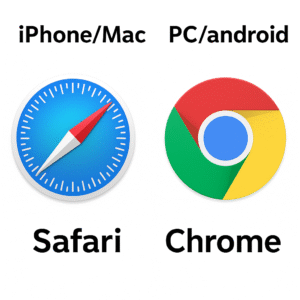
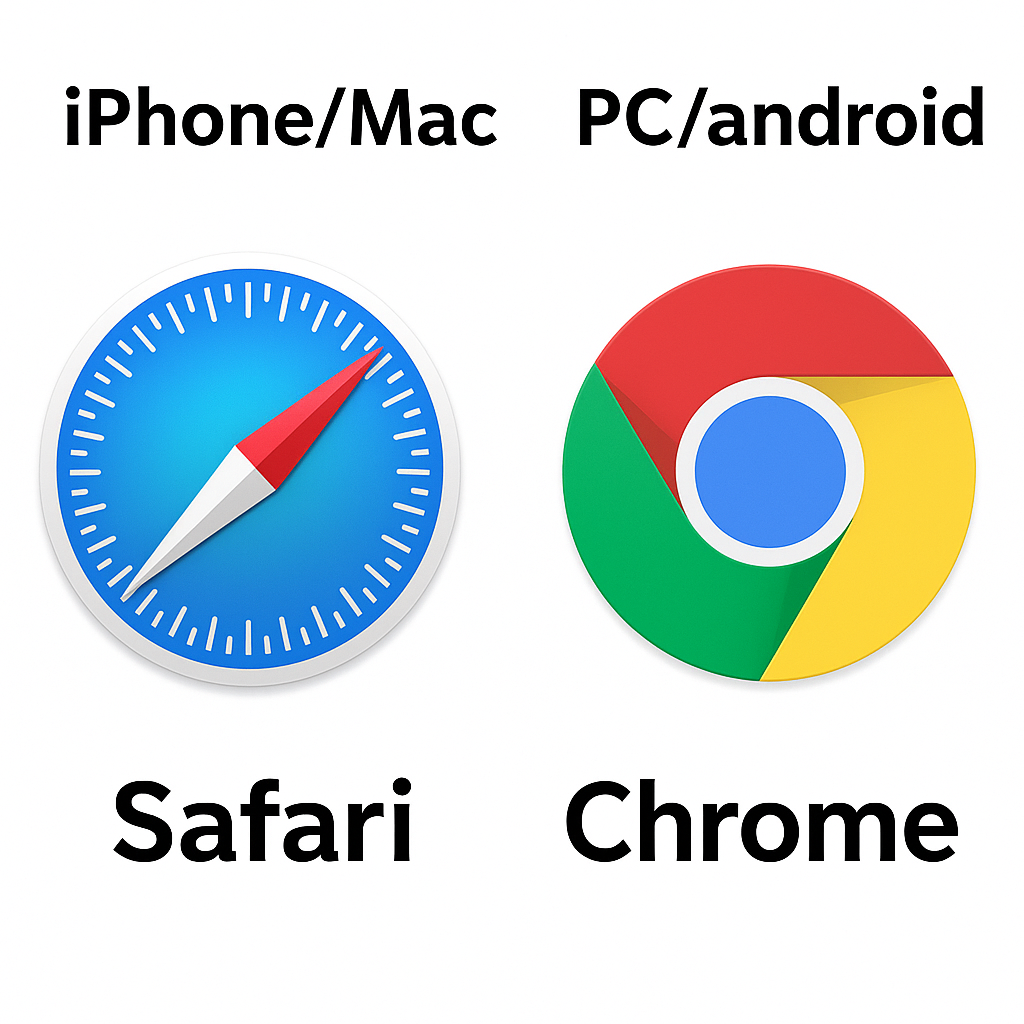
- Use latest update of Google Chrome browser on Windows or Android OR Safari on an Apple device.
- Click on the Pexip link (blue box) below.
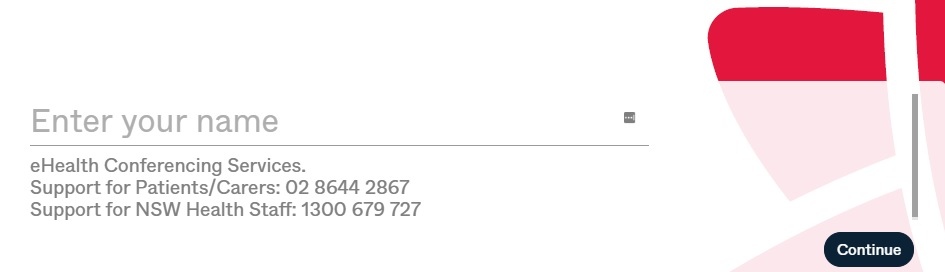
- Enter your name.
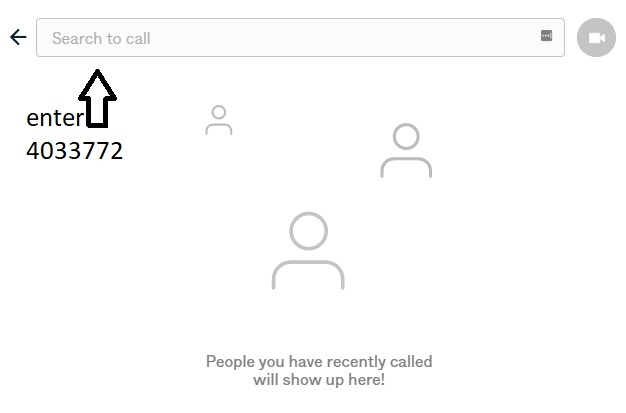
- Click on the green video icon
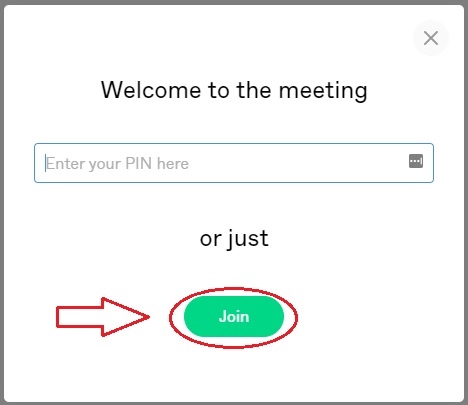
- Click "just join" (no PIN required)
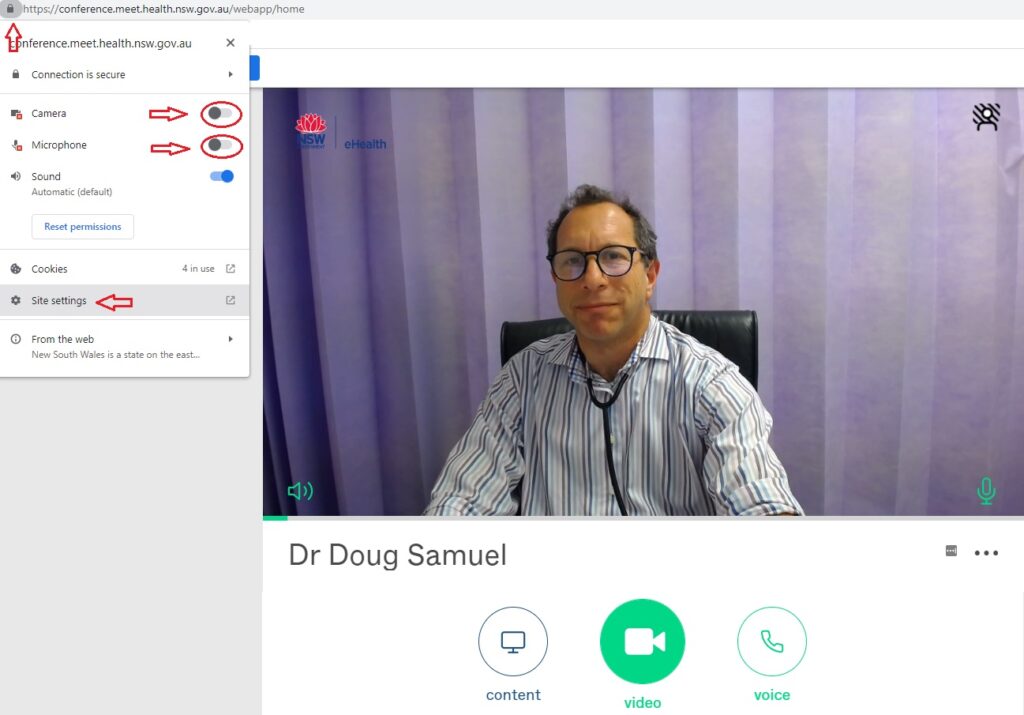
- Give permissions to allow video and audio (if needed, you can check this by clicking on the padlock on the top left of the URL bar).
- If you want a family member, friend, support person or health care provider to join the consultation and provide extra support, they can do this by video or phone. To join the call by phone, they can telephone 02-9842 2500 and they will be prompted to enter Virtual Meeting Room number 4033772 and then the hash key (#). Dr Samuel will bring them in when ready. Or ask Dr Samuel to call them on their phone when you are ready to start.
If you’re still having difficulty connecting, see our Troubleshooting & FAQ sections or call Dr Samuel’s rooms.
Troubleshooting with Pexip (Plan B)